Wednesday, July 1, 2009
Solid Framework now does PDF/A
Posted by
Michael Cartwright
at
12:56 PM
0
comments
Labels: PDF/A
Tuesday, January 15, 2008
Reading and Writing Secure PDF Files
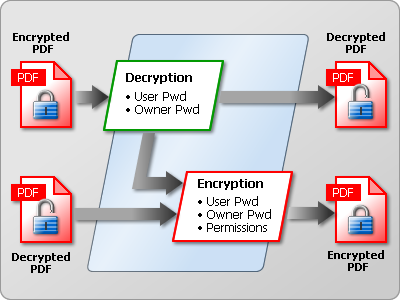
One of the most common unattended batch PDF processes is to apply standardized access permissions and encryption to all documents. This may be done as a stand-alone utility that uses a watched folder on your network or integrated into your document workflow system.
You can use PdfDocument to open an encrypted PDF file, assuming that you know either the owner or user password. With a Solid Framework Tools license you can write changes back to the PDF which means you can add, remove or alter the security settings.

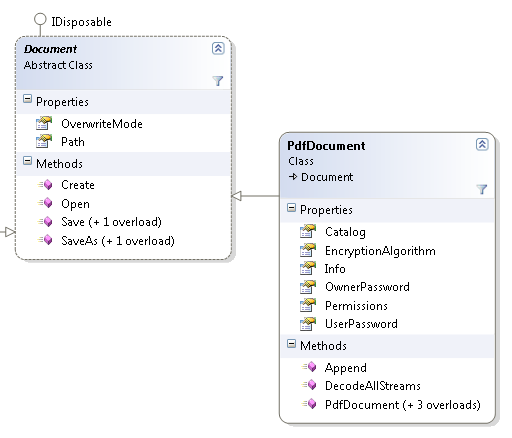
The PdfDocument class is all you need in order to master PDF security using Solid Framework. The steps involved are:
- Open() - opening an existing PDF file (with or without a password)
- EncryptionAlgorithm - choosing an encryption algorithm
- OwnerPassword and UserPassword - setting new passwords
- Permissions: setting user access permissions for the PDF file
- Save() or SaveAs() - saving the modified PDF file

Open
As usual with these examples, please start by getting one of the samples like pdfcreator working. That will ensure that your license is working. Then we'll remove the code in the body of the Main method. Keep the License.Import(..) call.
Make sure you have the following using statements:
using SolidFramework;using SolidFramework.Plumbing;using SolidFramework.Pdf;
using SolidFramework.Pdf.Plumbing;
For convenience, we can still use the InputPath and OutputPath from JobSettings. Edit JobSettings to make InputPath point to your existing PDF file. Make OutputPath point to where you want the resulting PDF file stored.
Create a new PdfDocument as follows:
PdfDocument document = new PdfDocument();
Set the properties including the owner password if the file is protected. The user password would give you readonly access to the file. To modify it, you need to use the owner password.
document.Path = JobSettings.Default.InputPath;document.OwnerPassword = "owner";
And then load the file.
document.Open();
EncryptionAlgorithm
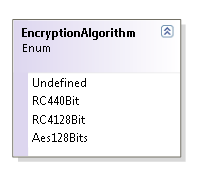
If the file was already secure then its EncryptionAlgorithm will be set. You have several choices but you cannot leave this property Undefined if you wish to use password security.

Make your choice and set it like this:
document.EncryptionAlgorithm = EncryptionAlgorithm.RC4128Bit;
OwnerPassword and UserPassword
There are two levels of access to a PDF file:
- Owner - the author (owner) has this level of access to modify the document permissions allowed to users. The owner always has all permissions.
- User - the user's permissions are restricted by the owner.
document.OwnerPassword = "newowner";
document.UserPassword = "user";
Permissions

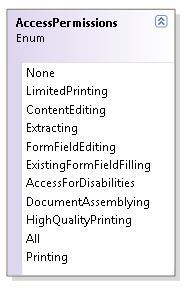
document.Permissions = AccessPermissions.Printing | AccessPermissions.AccessForDisabilities;
If you set the UserPassword then users will need to enter this password when they open the PDF file. After that, the restrictions based on AccessPermissions apply.
If you leave the UserPassword blank then users will not need to enter any password but the document will still be restricted by AccessPermissions. Opening the document and entering the owner password will give full permissions to the owner.
Save or SaveAsNow it is time to save your PDF document to a new file. Assuming your OutputPath is set to a good location, you just need two more lines of code. Without ForceOverwrite there will be an exception thrown if the file already exists.
document.OverwriteMode = OverwriteMode.ForceOverwrite;
document.SaveAs(JobSettings.Default.OutputPath);
Complete Sample Snippet
// createPdfDocument document = new PdfDocument();
// setdocument.Path = JobSettings.Default.InputPath;
document.OwnerPassword = "owner";
// calldocument.Open();
// setdocument.EncryptionAlgorithm = EncryptionAlgorithm.RC4128Bit;
document.OwnerPassword = "newowner";
document.UserPassword = "user";
document.Permissions = AccessPermissions.Printing | AccessPermissions.AccessForDisabilities;
document.OverwriteMode = OverwriteMode.ForceOverwrite;
// call
document.SaveAs(JobSettings.Default.OutputPath);
Posted by
Solid Documents
at
4:19 PM
0
comments
Labels: Encryption, Passwords, Permissions, Security
Thursday, December 27, 2007
Better PDF Creation from Word
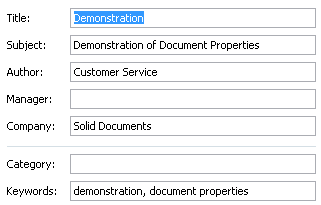
ShellPrintProvider vs WordPrintProvider WordPrintProvider WordPrintProvider is a custom PrintProvider designed to work directly with Microsoft Word via the Office API. Since Word is being driven through an API this gives Solid Framework much more control over the process. Failures can be communicated as exceptions to your program rather than UI warnings to the end user. In addition, Word can be used to examine the original document and provide support for features that would not be possible by simple printing such as the original Document Properties. To illustrate this, use File Properties in Word to add properties to your Word test document like this:
The starting point for many developers using Solid Framework is the simple pdfcreator sample. This tiny program demonstrates the shortest path to creating PDF files from just about any document on a Windows system.
ShellPrintProvider
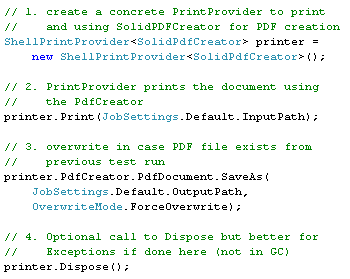
Using ShellPrintProvider, three or four statements are all that is needed to create a PDF file:
The ShellPrintProvider uses Windows Explorer to launch the application associated with the file type you are trying to convert. This only works if the application in question supports the shell “print” verb. In addition, print providers can use any of the supported Solid Documents PDF creation printer drivers. This example requires the Solid PDF Creator printer driver to be installed (but does not require a Solid PDF Creator license).
Advantages of ShellPrintProvider:
Disadvantages of ShellPrintProvider
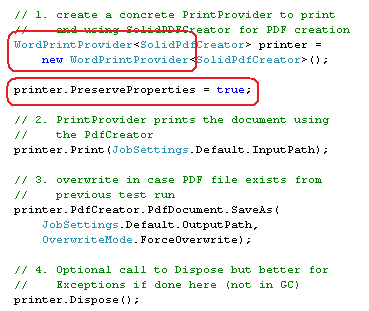
Now make two simple changes to the original pdfcreator sample:
- replace the two instances of ShellPrintProvider with WordPrintProvider
- add printer.PreserveProperties = true;
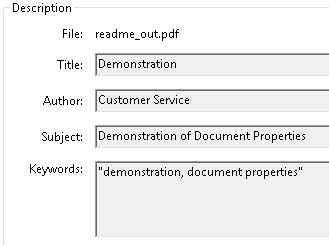
When you run the sample application and then examine File Properties for the resulting PDF file in Acrobat Reader you should see that your Document Properties from the original Word document have been preserved. You should also notice a lot less UI “noise” from Microsoft Word during the creation process. 
Posted by
Solid Documents
at
3:48 PM
0
comments
Labels: Document Properties, PDF Creation